
Move an icon set to another site
A step-by-step workflow for agencies: export a client's icon sets on site A, import them on site B, settle a taken name and use the icons there. Includes what travels and what does not.
You built a client's icon set on one site, for example a staging site or an earlier project, and now need it on another. Below you also see what moves with the icons and what stays behind.
For the pack format itself, see Icon packs.
Before you start
| Where | What must be true |
|---|---|
| Both sites | Easy SVG (free) and Easy SVG Pro are active. |
| Site B | The Pro license is active on this site. |
| Site B | Collections is on under Easy SVG → Settings → Features. It is off by default. |
Step 1: Export on site A
Open Export
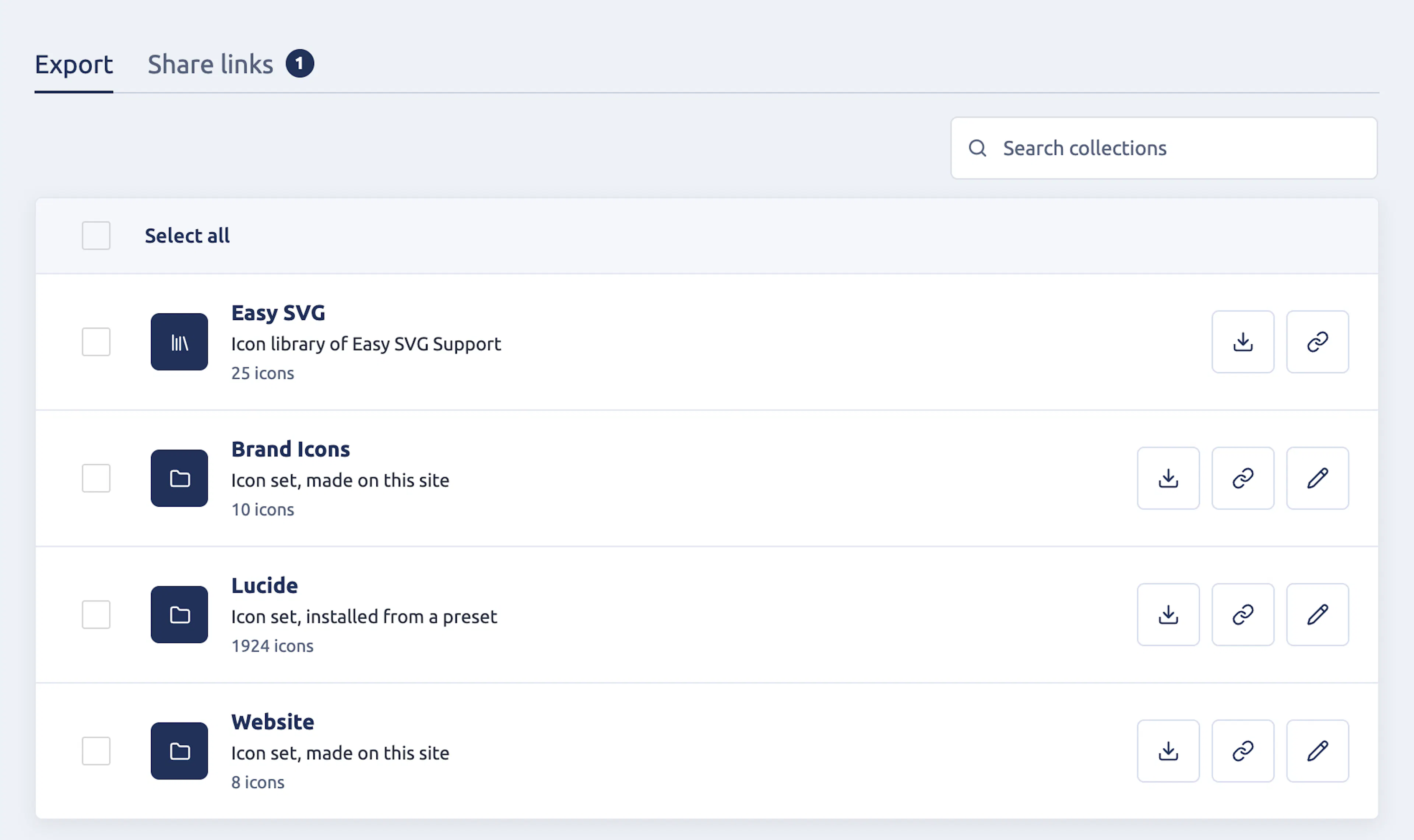
On site A, go to Easy SVG → Templates and open Export in the left column. Every collection on the site is listed with its icon count and where it comes from, for example "Icon set, made on this site".
Download one set
Click Download next to the set. You get one ZIP named after the set's address, for example agentur-marken.zip.
Or download several
Tick up to 25 collections, or click Select all, then click ZIP in the bar at the top. That ZIP is a bundle with one pack per collection. Site B imports the bundle as it is, one set per collection.
Each pack carries a manifest.json with the set's name, its icons with label and keywords, and three lines on where it comes from: license, author and source. A set you made yourself, without a recorded license, is exported as UNLICENSED, with site A's title (Settings → General) as author and site A's address as source. A set that arrived with a license, for example from a bought pack, keeps the license, author and source it came with.
Step 2: Import on site B
Open Templates
On site B, go to Easy SVG → Templates and click Upload.
Choose the pack
Drop the ZIP on Drop a ZIP here, or click Upload below it. The icons are cleaned by the sanitizer like any upload and stored as a new icon set.
Read the result
A message confirms the import, for example "3 icons imported as Zweite Marke." The set now appears on the Export screen as "Icon set, imported from a pack", with the license, author and source line from the pack below it.
Repeat for every pack
Import each pack ZIP on its own. A bundle from ZIP, or a plugin made with As a plugin, is read in one go: the message lists every collection it imported, for example "2 collections imported: ...".
When the name is already taken
An import never merges into an existing collection. If site B already has a collection at the same address, nothing is written yet and you see, for example:
A collection of that name already exists. Import it as agentur-marken-2 instead?
- Import under that name stores the set at the offered address. The message then names it: "Imported as Agentur Marken (2), ID agentur-marken-2, because agentur-marken was taken."
- Cancel imports nothing.
A set name that site B already uses gets a number, so the two sets stay apart in every list: the import above arrives as Agentur Marken (2). That also happens when only the name is taken and the address is free.
agentur-marken/star and agentur-marken-2/star are different icons. Content you move from site A still names agentur-marken/... and finds site B's older collection, not the imported one. If you want content from A to work unchanged, sort out the existing collection on site B first and import without a collision.The free icon library always gets a new address
You can export the free icon library of site A too. It is listed as Easy SVG, "Icon library of Easy SVG". On site B it never goes back into the free library. The address easy-svg always belongs to site B's own library, so the import always offers easy-svg-2 and stores the icons as a Pro icon set.
This matters for content: a block or shortcode from site A that names easy-svg/heart looks in site B's free library, not in easy-svg-2. Pick those icons again from the imported set.
Step 3: Use the icons on site B
The imported sets are ordinary collections on site B:
- Icon block. In the block's icon chooser, each set is listed by name next to WordPress and Easy SVG.
- Shortcode and PHP.
[easy_svg_icon name="agentur-marken/star"]andeasy_svg_icon( 'agentur-marken/star' )work as on site A, as long as the address did not change. - Fields and PHP-only blocks. The pickers for ACF, Lazy Blocks, Meta Box and PHP-only blocks offer the imported sets, once their switches are on.
If you moved the posts as well, the icons render on site B exactly as on site A: icon blocks, shortcodes, PHP-only blocks and ACF icon fields keep their stored value, because the address and the icon names are the same.
Other ways: WP-CLI and AI agents
The Templates screen is one of three ways to move a set. All three write the same pack and import it the same way, so you can export with one and import with another.
WP-CLI
Switch on WP-CLI under Easy SVG → Settings → Features on both sites, and Collections on site B.
# Site A: list the collections, then write one as a pack
wp easy-svg pack list
wp easy-svg pack export agentur-marken --file=agentur-marken.zip

# Site B: import it
wp easy-svg pack import agentur-marken.zip
The command line does not ask. If the address is taken on site B, it warns, for example "agentur-marken was taken; registering as agentur-marken-2.", and imports under the next free address. Pass --as=<slug> to choose the address yourself. A taken set name gets a number, as on the Templates screen. pack export with several collections writes one bundle of packs, or one plugin with --as-plugin --name="<name>"; pack import reads a bundle or such a plugin as one set per collection. See WP-CLI.
AI agent abilities
An AI client connected to both sites can do the move through the WordPress Abilities API. AI agents (MCP) must be on (it is out of the box), and the client acts as a user with manage_options.
- On site A,
easy-svg-pro/export-packwithcollectionset to the set's address. The answer holds the zip asbase64. - On site B,
easy-svg-pro/import-packwith thatbase64value, unchanged. - If the address is taken, the answer has
collision: true,imported: 0and a free address inslug, and nothing is written yet. Callimport-packagain with thatslug, or another one, to import.
Site B needs Collections on for the import, as on the Templates screen.
What travels and what does not
| Travels with the pack | Stays on site A |
|---|---|
| Every icon's drawing, cleaned again on import | Your posts and pages. Move them with your usual migration tool |
Icon names, so collection/icon addresses stay the same | The free library's address: it arrives as easy-svg-2 |
| Each icon's label and keywords | Feature switches and settings under Easy SVG → Settings |
| The set's display name, with a number if site B already has a set of that name | |
license, author and source | The Pro license. Site B needs its own website on your license |
The move is lossless for the icons themselves: a set that kept its address and name gives the same pack, byte for byte, when you export it again from site B.
What happens later on site B
| Event on site B | Visitors see | Editors see |
|---|---|---|
| The Pro license lapses | All icons, unchanged | The Pro tools are locked until the license is active again. Stored ACF field values stay |
| The theme is switched | Icons from imported sets, unchanged | Icons that came from the old theme's icon folder are gone, because they belonged to the theme |
| Easy SVG Pro is deactivated | Only icons from the free library | Icons from Pro sets no longer render anywhere, including blocks, shortcodes and PHP-only blocks |
Nothing is deleted in any of these cases. Activating Pro, renewing the license or switching back to the theme brings the icons back.