
Ready-made icon packs
Install Material Symbols, Lucide, Heroicons, Bootstrap Icons and Font Awesome Free in one click, switch off the icons you do not need and take updates. With everything your server needs for it.
Easy SVG Pro installs ready-made icon packs from well-known providers straight from the WordPress admin. Nothing to download, nothing to unpack: pick a pack, click Install and activate, and the icons are ready on your site. Whatever you do not need, you switch off.
The packs
| Pack | Styles | Icons | License |
|---|---|---|---|
| Font Awesome Free | Solid, Regular | 2001 and 273 | CC BY 4.0 |
| Material Symbols (Google) | Outlined, Rounded, Sharp | 4157 each | Apache 2.0 |
| Lucide | one style | 1924 | ISC, Feather parts MIT |
| Heroicons (Tailwind Labs) | Outline, Solid | 324 each | MIT |
| Bootstrap Icons | one style | 2079 | MIT |
Every style is a pack of its own, so you can install Material Symbols Rounded without the other two. UnleashWP offers the list to sites with an active Pro license.
Before you start
- Easy SVG (free) and Easy SVG Pro are active, and your Pro license is active and connected to this site.
- You are signed in as an administrator.
- Templates and Collections are switched on under Easy SVG → Settings → Features. A pack is stored as an icon set, so it needs Collections.
- Your server meets the requirements below. On most hosts it does without you doing anything.
Install a pack
Open Templates
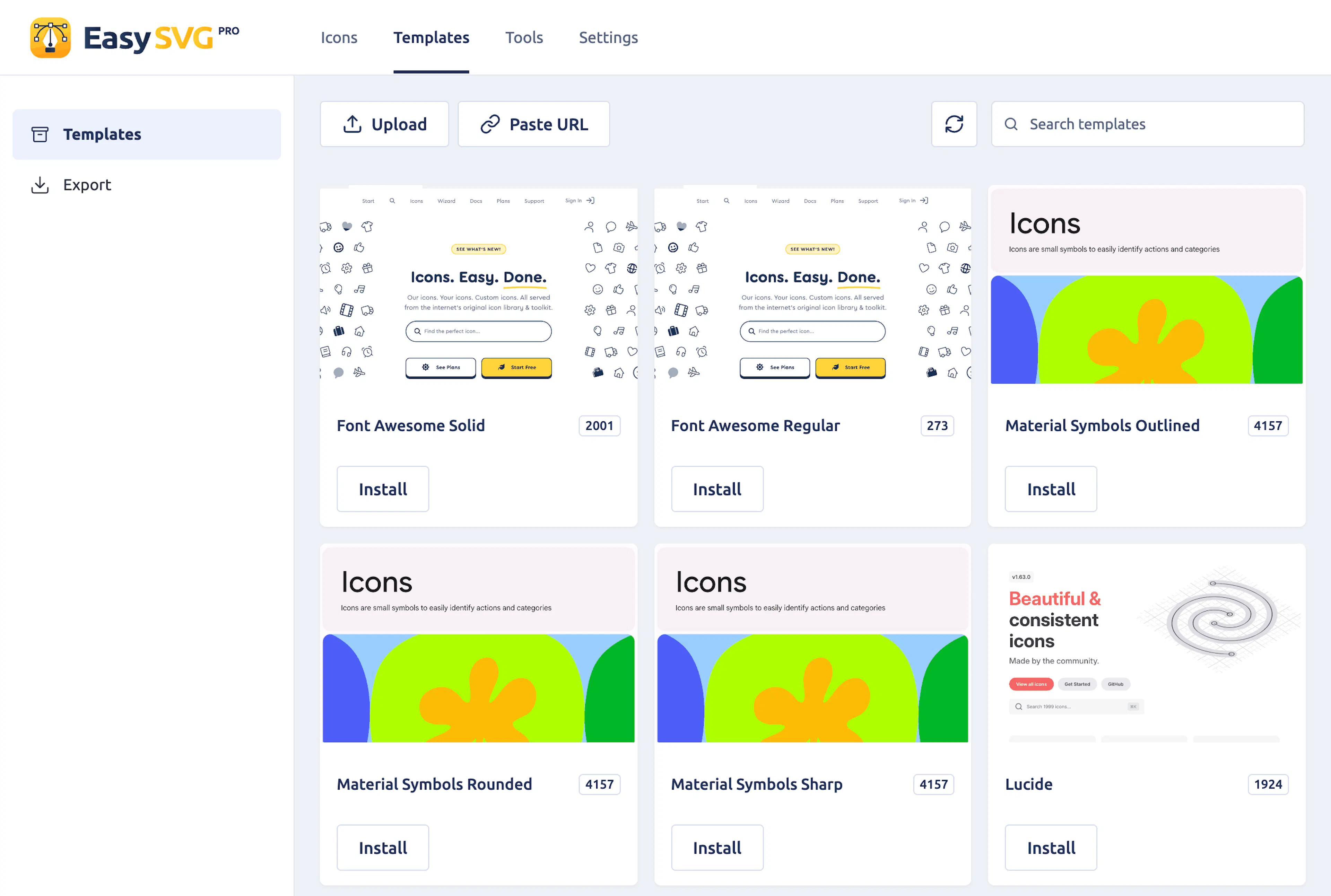
Go to Easy SVG → Templates. You see one tile per pack, with a picture, its name and the number of icons, the way the Themes screen shows themes.
Look at the details
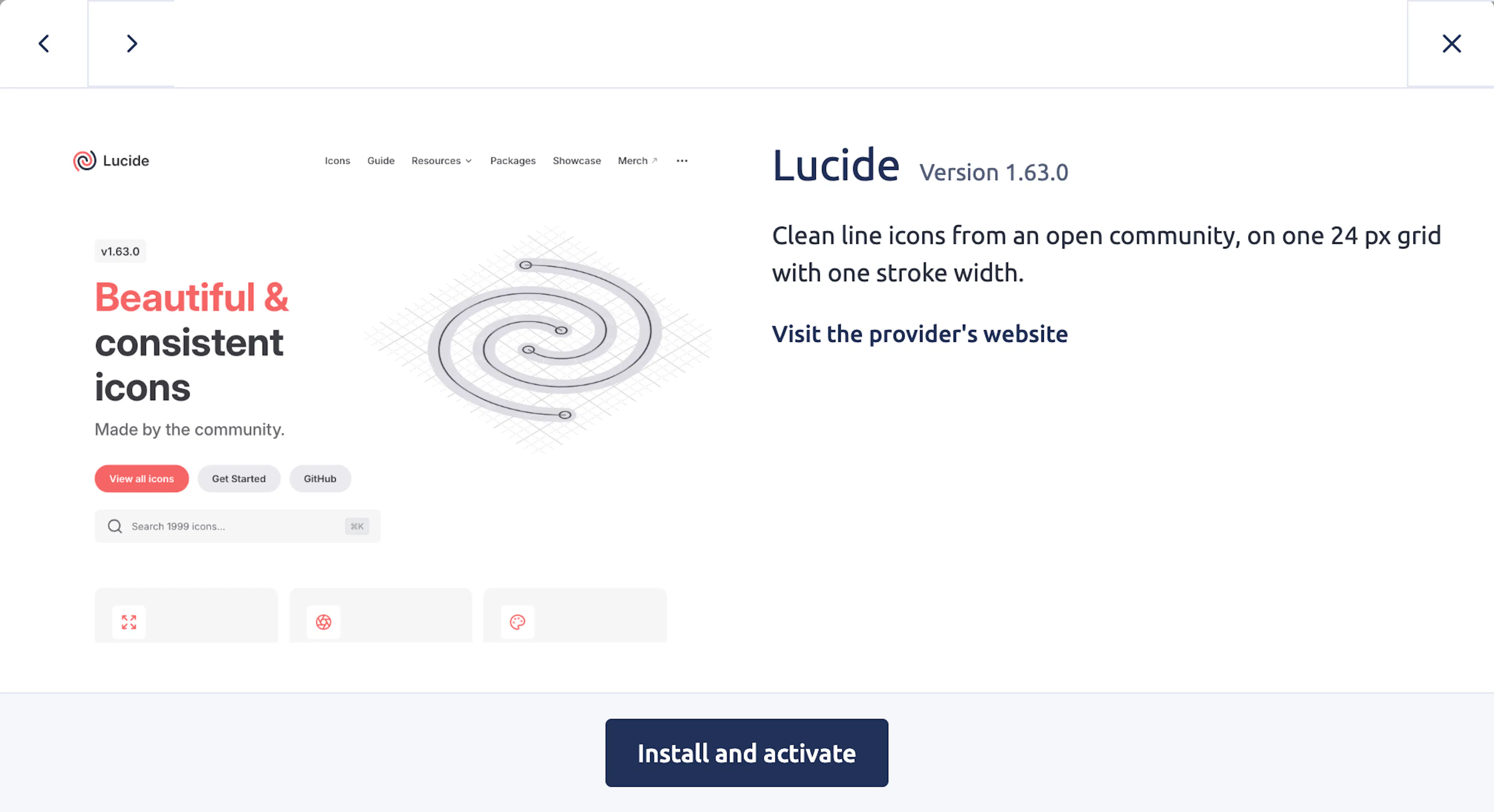
Click the picture on a tile, or Install: the details always open before anything is installed. The dialog shows who made the icons, their license, the version and a link to the provider's website.
Install and activate
Click Install and activate. A running bar shows the pack being downloaded, checked and stored. It usually takes a few seconds. Then the tile says Active.
From now on the icons are everywhere Easy SVG offers icons: Easy SVG → Icons, the Icon block in the block editor, and the icon fields of ACF, Meta Box and others.
Only the icons you need
A pack like Material Symbols holds more than 4000 icons. So that you and your editors do not have to search through all of them, switch off what nobody needs.
Open the chooser
On the tile of an active pack, click Choose icons.
Switch icons off and on
A click on an icon switches it off (faded) or back on. Search finds icons by name. Switch all off and Switch all on apply to what the search shows. The count at the top says how many are on.
Save
Click Save selection. The tile then reads, for example, "120 of 4157 icons on".
What a switched-off icon means:
- It is offered nowhere: not under Easy SVG → Icons, not in the Icon block, not in fields, not in exports.
- A page that already shows it keeps showing it. You can tidy up without anything disappearing from your site.
- It stays stored. Switch it back on and it is there at once.
Switch a whole pack off
Click Switch off on the tile. The pack stays installed, but none of its icons is offered and it leaves Easy SVG → Icons. Pages using its icons keep showing them. Activate brings it back, with your choice of single icons intact.
Updates
When a provider releases a new version, UnleashWP updates the pack. Your tile then says Update available and offers Update to 1.64.0 (with the actual version).
On an update:
- New icons arrive switched on.
- Switched-off icons stay off.
- What you changed stays, such as a renamed icon. Only icons still exactly as installed are redrawn.
- Nothing is deleted. An icon the provider dropped stays with you, because a page might use it.
Updating a pack needs no update of Easy SVG Pro.
What your server needs
Most hosts already meet this. If the list of packs does not appear or an install fails, go through these points or hand them to your host.
In WordPress
| What | Why |
|---|---|
Administrator role (capability manage_options) | Only administrators install and update packs and switch icons off. Editors see and use the icons that are on. |
| Easy SVG and Easy SVG Pro active | Easy SVG brings the sanitizer every icon goes through. |
| Pro license active and connected to this site | The list of packs exists for licensed sites only. |
| Templates switched on | Without it the site does not ask for packs at all. |
| Collections switched on | An installed pack is an icon set. Without it the install is refused with "The icon set editor is off." |
On the server
| What | Value |
|---|---|
| PHP | 8.2 or newer |
| PHP extension | zip (ZipArchive), to open the pack |
| Outgoing connection | HTTPS (port 443) to updates.unleash-wp.com |
| Certificate check | Must succeed (current CA certificates on the server) |
| Memory | 128 MB recommended; the largest packs need about 30 MB more while installing |
| Run time | 30 seconds per request are enough; the download has its own 15 second limit |
| Temporary directory | Writable; the pack is put there briefly and removed at once |
Not needed: write access to the plugin or theme folders, or a higher upload limit. The server fetches the packs itself and stores them in the database.
In the browser
Your browser loads the tile pictures from updates.unleash-wp.com. If your site sets a Content Security Policy for the admin, allow that address for images (img-src). Without a picture the tile shows some of the pack's icons instead.
When something goes wrong
| Message | What it means and what to do |
|---|---|
| "UnleashWP could not be reached, so the list of preset sets is unknown, not empty." | The server got no connection. Check outgoing HTTPS to updates.unleash-wp.com, then click Check again. |
| "This site is not entitled to the preset sets." | The license is not active or not connected to this site. Open Easy SVG → Settings → License. |
| "Something answered, but not with a list of preset sets." | A firewall, a proxy or a login page answered instead of UnleashWP. Allow updates.unleash-wp.com. |
| "The download does not match the checksum the catalog named, so nothing was installed." | The file arrived incomplete or changed. Nothing was installed. Try again in a few minutes. |
| "That pack is larger than this site will read in one request." | Very rare; your server reads less than 16 MB at once. Contact support. |
| "The download could not be written to a temporary file." | The temporary directory is not writable. Your host can fix this. |
| "The free Easy SVG plugin is not active, so nothing can be stored." | Activate Easy SVG. |
The list of packs is cached for an hour. Check again asks right away.