
Share links
Move one icon collection from one WordPress site to another with a secret link that expires and can be revoked, without downloading and uploading a ZIP.
You built an icon set on the staging site and want it on the live site. Instead of downloading a ZIP and uploading it again, you make a share link on site 1 and paste it on site 2. Site 2 fetches the collection and imports it like an upload.
Before you start
On both sites:
- Your Pro license is active.
- Share links is on under Easy SVG → Settings → Features, group Icons and sets. It is the small switch inside the Templates card, so Templates must be on too. Both start on.
On the site that imports, also Collections (off by default), because the collection arrives as an icon set.
Make a link on site 1
Open Export
Go to Easy SVG → Templates and open Export in the left column.
Choose the collection
Click Share link next to the collection.
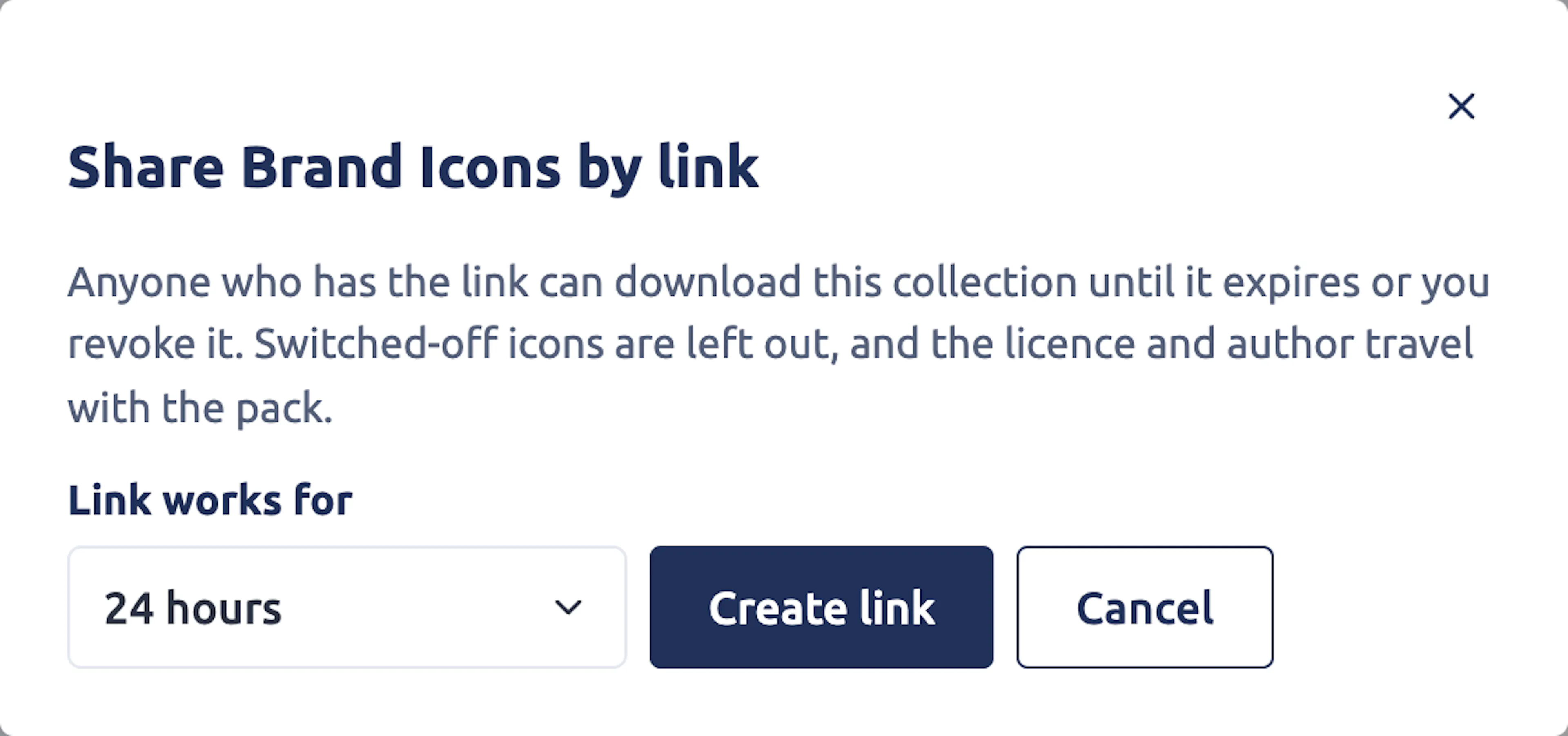
Pick how long it works
Under Link works for choose 1 hour, 24 hours (default) or 7 days, then click Create link.
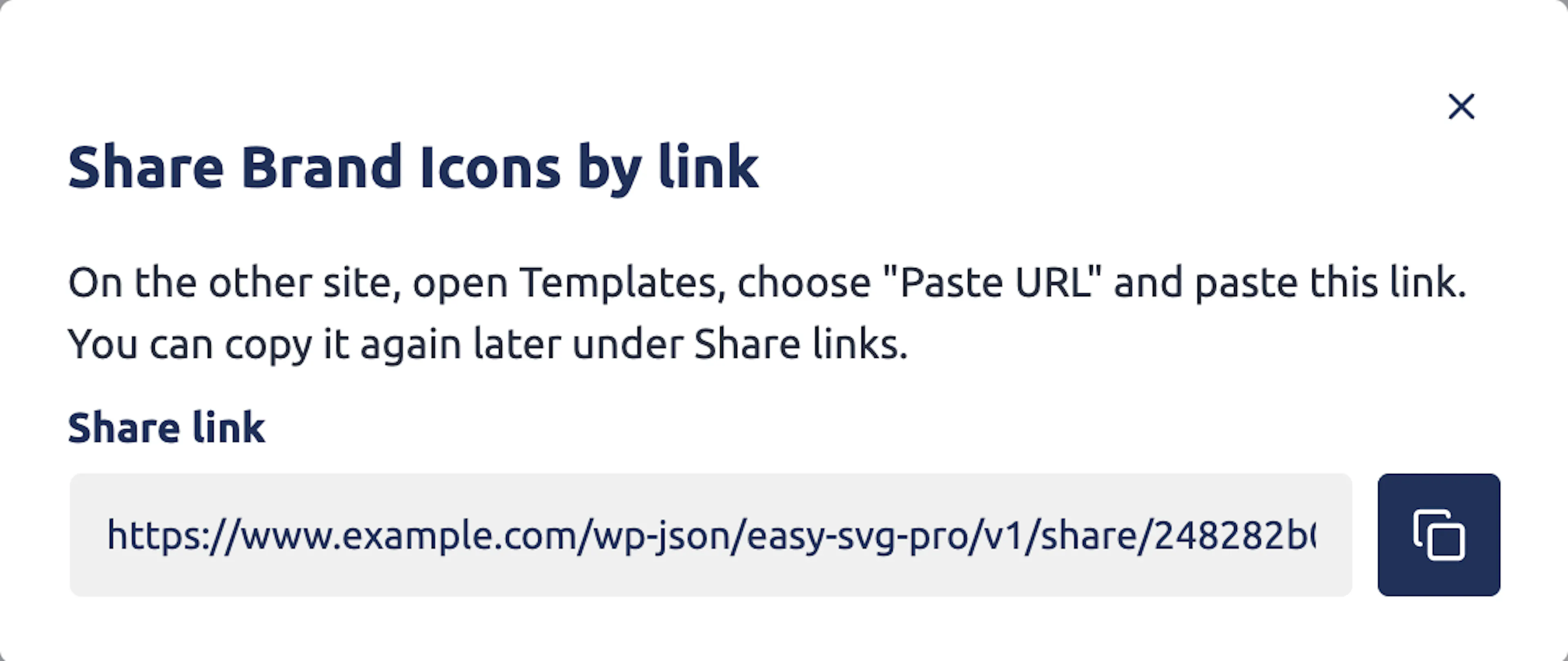
Copy it
Click Copy link. You can copy it again later under Share links.
Import on site 2
Open Templates
Go to Easy SVG → Templates and click Paste URL.
Paste and import
Paste the link into the field and click Import.
Name taken?
Like an upload: if a collection of that name exists, the site offers a free name. Click Import under that name or cancel.
You see for example "48 icons imported as house-icons."
Revoke a link
On site 1, go to Easy SVG → Templates → Export and switch to Share links at the top. The list shows each link with its collection and when it expires. Copy link gives you the link again, Revoke ends it at once. Sites that already imported keep the icons. An expired link disappears from the list on its own. A site keeps at most 50 live links; revoke one to make room for another.

What is shared
- Exactly one collection, the same pack the Download button gives you.
- Switched-off icons are left out.
- License, author and source travel with the pack.
- Font Awesome Pro can be shared too, so an agency sets up its icons once and rolls them out. The form reminds you: share it only with sites your Font Awesome license covers.
Safety
- The link holds a long random secret. Site 1 stores it encrypted with the keys from its
wp-config.php. A copy of the database alone opens no link. - A link belongs to exactly one set. While the set is in the trash, the link answers like an unknown one. Once the set is deleted for good, the link ends.
- An expired, revoked, mistyped or unknown link all answer the same "not found".
- Site 2 fetches only
https://links to the share address of another site (/easy-svg-pro/v1/share/and a long code), on port 443, under a host name (not an IP address) that resolves to a public address. Links into a private or local network, other addresses on the site, and redirects are refused. A site behind an outgoing proxy fetches no link, because it cannot check where the proxy resolves the address. - The size is limited like an upload, and every icon goes through the sanitizer.
Common questions
Related guides
On the command line: wp easy-svg share create <collection> on site 1, wp easy-svg pack import-link <url> on site 2. AI clients get the same as abilities. Developers: Share links in detail.